Credential types |
|
|
|---|
OAuth
| The channel asks you to login and allow access for Packing Partner. It returns a token that is stored and used by Packing Partner to access the API.
| Key or Token
| The channel or carrier issues a token that they either email you, or you copy it from the channel or carrier portal.
| Username, Password
| You use your login username and password to allow access to the API.
|
|
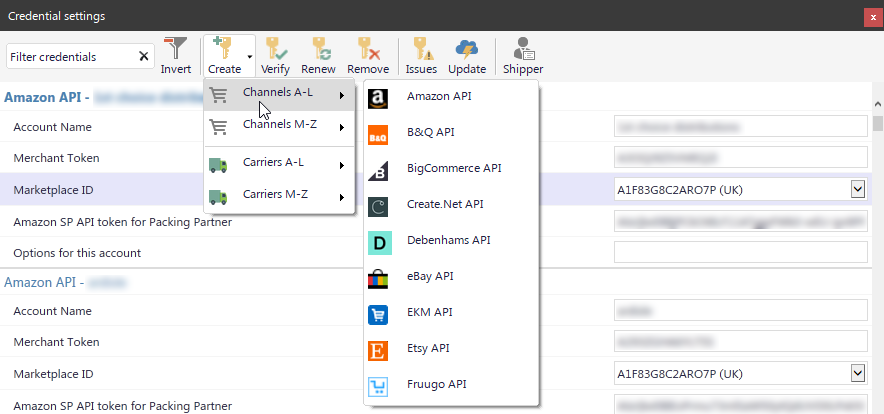
Toolbar |
|
|
|---|
Filter
| Filters the credentials to easily find the ones you are looking for.
| Invert
| Filter all the credentials that don't contain the filter text
| Create
| Create a new credentials entry for a channel or carrier. Most carriers only allow one account, so you can't create multiple entries for those.
| Verify
| Verifies that the credentials you have entered are valid by making a test call to the API.
| Renew
| Renews OAuth credentials. Only enabled when OAuth credentials are selected.
| Remove
| Remove the currently selected credentials from the list. To remove permanently you will need to Save the changes.
| Update
| Updates the Express server with renewed credentials. This process should be automatic, but this can be used if the automated process fails.
| Shipper
| Opens the settings dialog at the Shipper Tab to change your shipper settings
|
|