Processing OrdersCreating Carrier Labels

Carriers in Packing Partner
Packing Partner supports the majority of UK carriers, including multi carrier agents. In most cases setting up your carrier is a one off process, after which the carrier and service will be automatically selected from your rules.

Carrier and service

Shipping rules
Once you have entered your credentials, you can create shipping rules that automatically choose your carrier and service, and use stored metrics to pick the service and weight, or save presets to quickly select your carrier and service from a menu.

Stored Metrics

Stored metrics allow you to save the dimensions and weights of an order by setting them once. When another order has the same products, it will use the previously saved weight and dimensions.
To setup stored metrics, enable the feature in Tools>Settings>Records>Stored parcel metrics. If you want to only used Stored Metrics, then also set Ignore channel metrics to Yes.
Storing metrics
When a record doesn't have stored metrics, right click and select Change Carrier Details>Parcel Metrics to set the weight and dimensions for the record. You can select more than one record, but they must all use the same metrics.
When you save, the metrics will be updated for the selected records. If Apply these metrics and shipping rules to unshipped records is ticked, the metrics will be stored and applied to any other unshipped records that have the same products.
Setting parcel metrics
Using stored metrics
The stored metrics are then used in a shipping rule, to set the metrics and pick the correct format. This is most useful for Royal Mail, to choose the correct weight and format.
Stored metrics used to choose Small Parcel

Manual selection

In the Records Tab, right click a record and select Amend Carrier Details>Carrier Details to open the Carrier Details dialog. From there you can change the carrier and service, and add commonly used carriers and services to the preset menu.
Saved preset menu
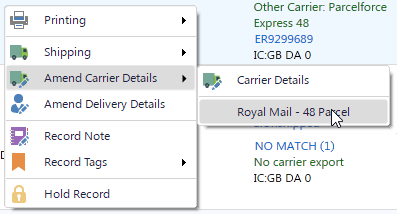
Presets are accessible under the toolbar Shipping button and under the Carrier Details menu item, on the right click menu.
Amend Carrier Details with preset menu item

Label subscription

Creating on demand labels is an add-on subscription. To subscribe to Royal Mail or Other Carrier labels, go to the Account Tab and click the Subscription view button.
Subscription for on demand labels

API credentials

API Credentials
Most carriers supply you with API credentials (usually a user name and password, or an API token) that you enter by clicking Tools>Credentials
Create credential entry for carriers

Creating Labels

Once you have subscribed, setup your API credentials and selected the carrier and service, you can select the records in the Records Tab, then click Shipping>Create Carrier Labels.
Create Carrier Labels menu
This opens a confirmation dialog where you can amend the despatch date, and amend the dimensions and weights if necessary. This dialog will also display warnings for any orders that have issues, such as surcharge pricing and invalid dimensions.
Confirm create labels dialog
Once the labels have been created, the label confirmation dialog opens and shows the labels that have been created. If you click cancel because you don't want the labels, you must also cancel them on your carrier portal.
Confirm import labels dialog