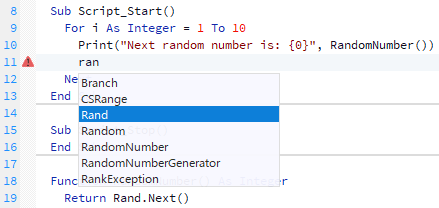
Editing Packing Partner Scripts
Script Editor | |
Shortcut Keys | Ctrl+
| Action
|
|---|
Ctrl+V
| Paste text from the clipboard
| Ctrl+X
| Cut current selection to the clipboard
| Ctrl+C
| Copy current selection to the clipboard
| Ctrl+A
| Select all text in the editor
| Ctrl+S
| Save the current script
| Ctrl+I
| Inspect variable at cursor in object viewer
|
Ctrl+Shift+
| Action
|
|---|
Shift+Ctrl+D
| Duplicate current line
| Shift+Ctrl+-
| Move back in the editor position history
| Shift+Ctrl++
| Move forward in the editor position history
| Shift+Ctrl+Up
| Shift current line up
| Shift+Ctrl+Down
| Shift current line down
|
|
Script Toolbar | Sa
|
|
|---|
Save
| Save the current script to the default folder in Packing Partner's data folder
| Import
| Import the script after being saved with the Export button. This will also import any library scripts and images that were saved using Export.
| Export
| Exports the script to be imported on another PC. The exported file includes any images and library files that have been added to the script.
| History
| The editor keeps the last 10 saved files in it's history folder, so you can revert to a previous version if needed.
|
Code
| Inserts templates for methods that are called by the main program.
| Image
| Adds images to the script that are used to display on buttons or menus created in script.
|
Sort
| Sort the methods in the script into alphabetical order.
| Cmt
| Add a comment to the selected lines of scripts
| UnCmt
| Remove comments from the selected lines of script
| Font
| Change the font used for all script and code editing
|
|
|
|---|
Cut
| Cut selected text from the editor
| Copy
| Copy selected text from the editor
| Paste
| Paste text from the clipboard into the editor
|
|
|
|---|
Undo
| Undo previous code changes in the editor
| Redo
| Redo previously undone changes in the editor
|
|
|
|---|
Build
| Builds and runs the current script. If there are breakpoints in the editor, the script will be run in debug mode, otherwise it will be run in live mode.
| Pause
| Toggles pausing of the script. When a script is paused it will not run at all, but can be edited.
| Test
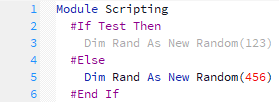
| Sets a conditional compiler variable called Test to True or False. This is used to compile different code, depending on it's state:
|
|
Code Toolbar | |